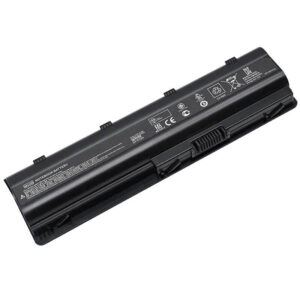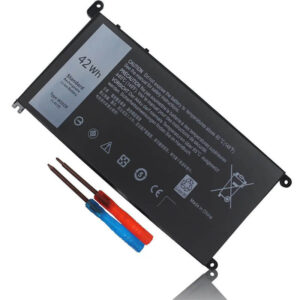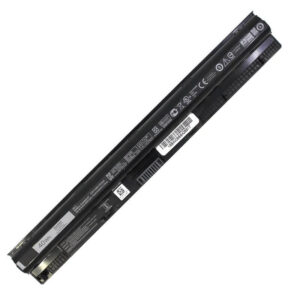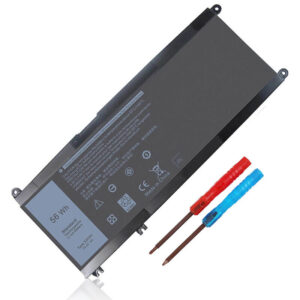
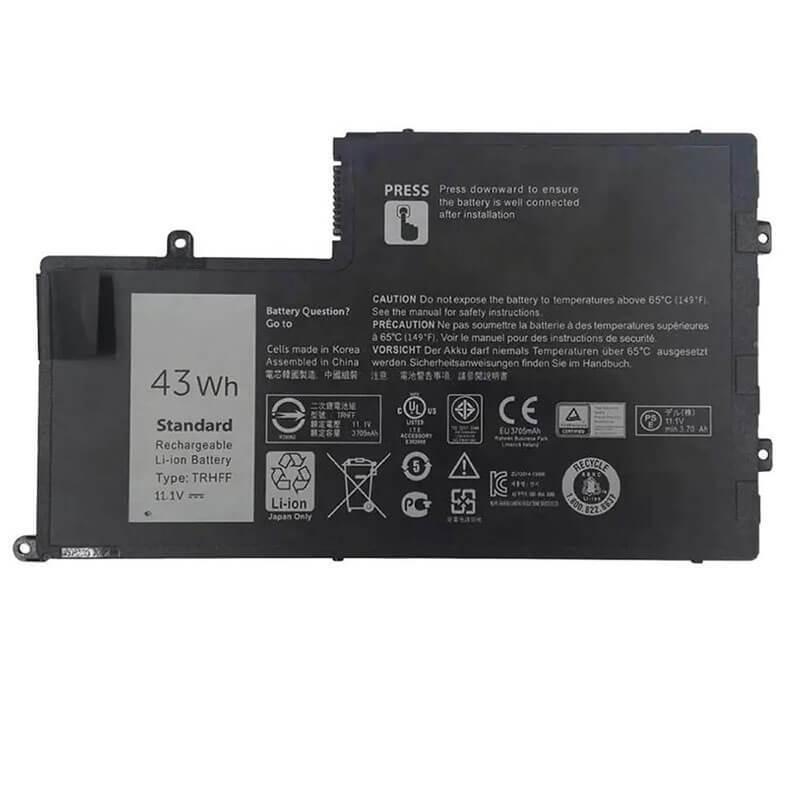
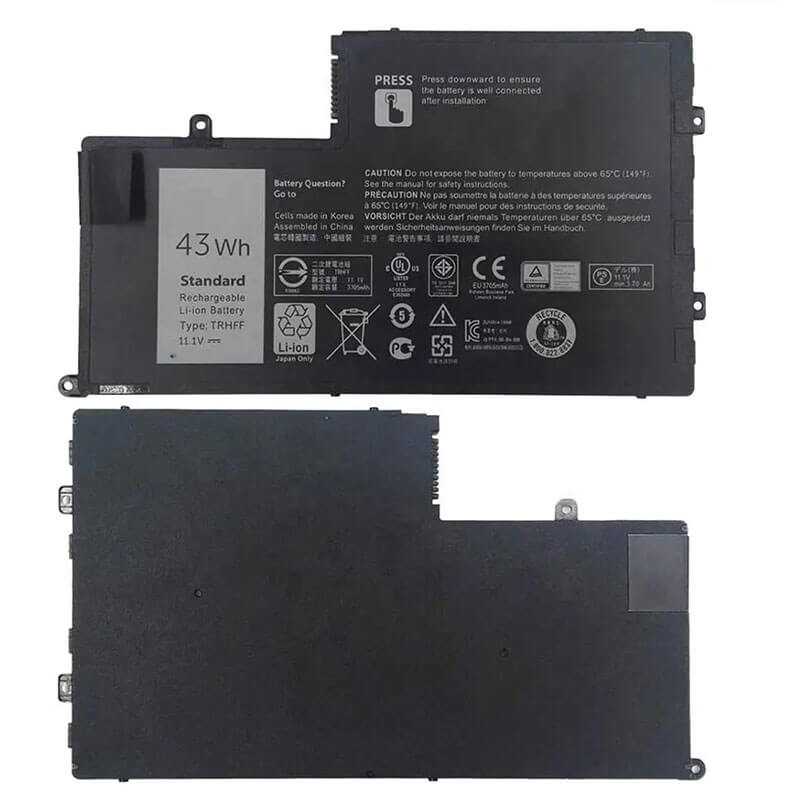
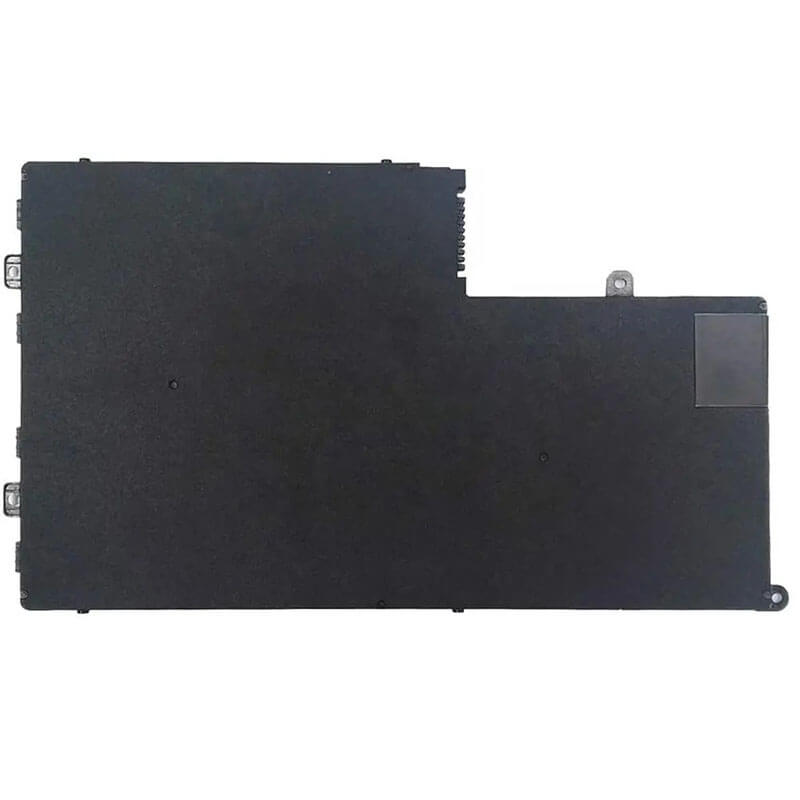
TRHFF Battery for Dell Latitude E7450 Inspiron 15 5547 5548 14 5447 5448 | 11.1V 43Wh 3-Cell – HTJ
- Model Numbers: TRHFF Battery
- Battery Type: Lithium-ion Polymer (Grade A+ High-Density Cells)
- Voltage: 11.1V (Compatible with 10.8V)
- Capacity: 3800mAh / 43Wh
- Cells: 3-Cell
- Connector: External Integrated Board-to-Board
- Condition: 100% Brand New from Factory
- Life Cycle: 600 – 1000 recharge cycles
- Multiple Protection: Over Current, Over Voltage, Over Charge & Discharge, Overheat, Short Circuit, ESD, EMI
- Color: Black
- Certifications: UL2054, CE, FCC, RoHS, UN38.3, MSDS, IEC62133
- OEM/ODM: Yes(Accepted)
- Warranty: 18 Months After Sales, 24/7 Email Support.
- Product Dimensions: 12.13 x 3.15 x 1.77 inches
- Item Weight: 10.5 Ounces
TRHFF Battery for Dell Latitude E7450 Inspiron 15 5547 5548 14 5447 5448 | 11.1V 43Wh 3-Cell
Detailed Product Specifications and Features:
Core Technical Parameters:
| Property | Specification |
|---|---|
| Model Numbers | TRHFF Battery |
| Battery Type | Lithium-ion Polymer (Grade A+ High-Density Cells) |
| Voltage | 11.1V (Compatible with 10.8V) |
| Capacity | 3800mAh / 43Wh |
| Cells | 3-Cell |
| Connector | External Integrated Board-to-Board |
| Condition | 100% Brand New from Factory |
| Life Cycle | 600 - 1000 recharge cycles |
| Multiple Protection | Over Current, Over Voltage, Over Charge & Discharge, Overheat, Short Circuit, ESD, EMI |
| Color | Black |
| Certifications | UL2054, CE, FCC, RoHS, UN38.3, MSDS, IEC62133 |
| OEM/ODM | Yes(Accepted) |
| Warranty | 18 Months After Sales, 24/7 Email Support. |
| Product Dimensions | 12.13 x 3.15 x 1.77 inches |
| Item Weight | 10.5 ounces |
Technical Note:
Design Note: The TRHFF is an internal battery with a slim, flat profile.
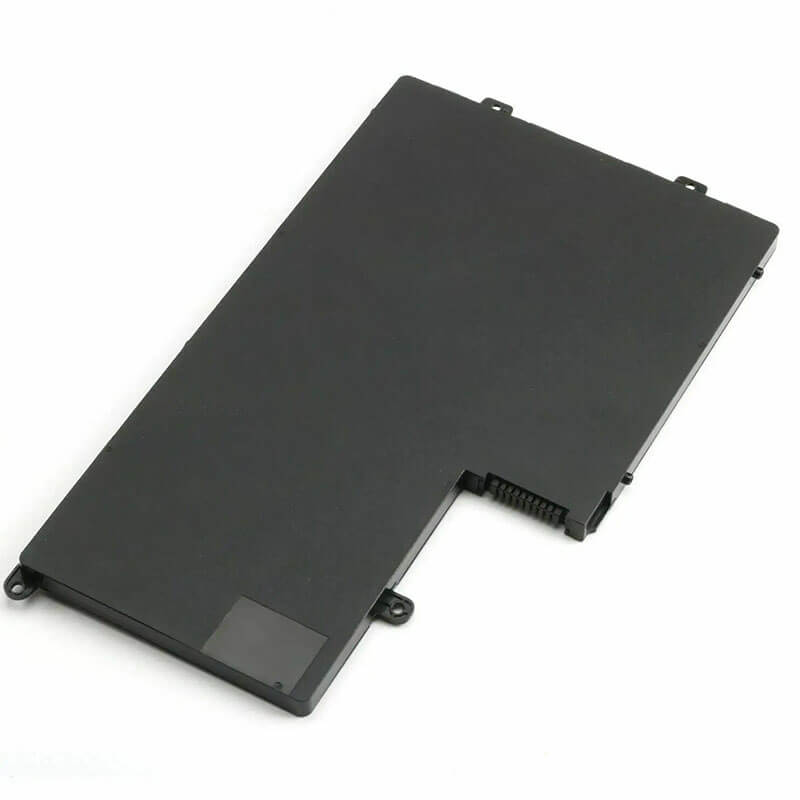
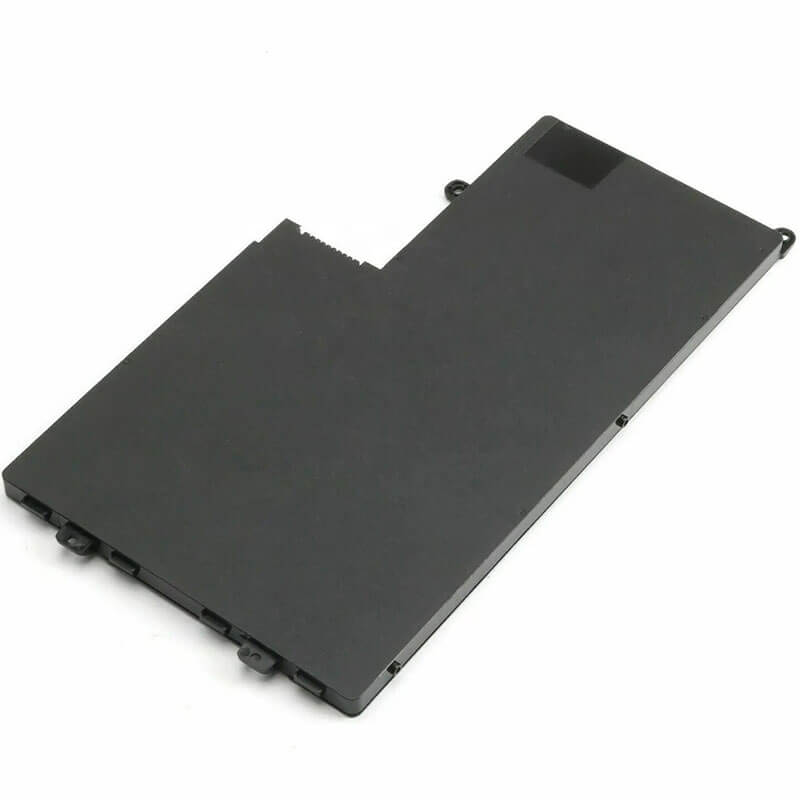
Visual Identification: It is distinguished by its L-shaped screw tab layout and a specific 8-pin connector slot.
Series Compatibility: This is a “dual-design” battery, fitting both consumer Inspiron and professional Latitude chassis.
Safety Note: Includes HTJ’s “Circuit-Shield” BMS to protect against overcharge and short-circuiting during heavy business usage.
Important: Not compatible with the 4-cell WD52H (54Wh) used in some Latitude E7450 configurations unless the internal tray is adjusted.
Product Features:
- Battery Newest Premium Grade Cells
- Best Circuit Board
- Multiple command chip control, keep the battery stable charge and discharge;
- Over-charger protection and discharger protection, short-circuit protection, ensure fast charges and low power consumption
- Easy & Quick Installation
- Our battery is 100% compatible with the original battery and meets
- CE/FCC/ROHS/UL-certified standards. It is 100% new from the manufacturer and can support up to 1000 recharge cycles over the life of the battery
- Power Interface: Gold-plated connector points to ensure current transport excellently and serve stably.
- Enclosure: The enclosure is made of ABS + PC high-quality material, which has a high-temperature-resistant function to protect your laptop from overheating
- Battery Buckle: The battery buckle is closely connected to the laptop, and the metal interface is stably powered
WDX0R / WDXOR Battery Compatibility Laptop Model List:
1. Compatible Laptop Model List (Comprehensive)
| Dell Series | Specific Model Suffixes (High-Volume Searchable Variants) |
|---|---|
| Latitude 14 7000 | E7450 Series (Clamshell & Touch): E7450-AMW10, E7450-CTO, Latitude 14 7000 Series |
| Inspiron 15 (5000) | 5542, 5543, 5545, 5547, 5548: i5547-3750SLV, i5548-1669SLV, i5547-7502sLV, i5545-2500sLV |
| Inspiron 14 (5000) | 5442, 5443, 5445, 5447, 5448: i5447-3200SLV, i5447-6401sLV, i5448-i7 |
| Latitude 12 / 14 | 3450, 3550 (Select Configs): Latitude 14 3450, Latitude 15 3550 |
| ⚠️ Absolute Incompatibility | NOT FOR: Latitude E7440 (Uses 34GKR / 7.4V). NOT FOR: New Latitude 7450 (2024 model). |
| Visual Check | This is a Flat 3-Cell Internal Plate. Dimensions: ~234mm x 85mm. |
2. WDX0R / WDXOR Battery Compatible Part Numbers (P/N List)
- Dell Spare Numbers: TRHFF, 0TRHFF, 1V2F6, 01V2F6, 58DP2, 058DP2, DFVYN, 0DFVYN, 5MD4V
- Alternative Sub-Codes: VV2W9, 5MD4V, 86JK8, R0JM6, 9P402, 0PD19, 07WMM, DL011307-PRL13G01
- Regulatory Codes: P49G, P49G001, P38F, P38F001
- Engineering Code: 0VPH5X, VPH5X
Why Choose HTJ TRHFF Battery?
- High-Performance Business-Grade Cells:
The Latitude E7450 is a corporate workhorse. HTJ utilizes Grade A+ Polymer cells that maintain a stable 11.1V discharge curve, ensuring your CPU doesn’t throttle during intensive multitasking or video conferencing. - Authentic Dell Communication Logic:
Dell systems are notorious for rejecting aftermarket batteries. HTJ’s TRHFF uses a specialized TI-based chipset to ensure a seamless “handshake” with the Dell BIOS, providing 100% accurate percentage reporting and Dell Power Manager support. - Zero-Expansion Polymer Tech:
The Inspiron 5547 chassis is compact. Our TRHFF is built with high-quality separators and a vacuum-sealed casing to prevent battery swelling, a common issue that can damage the internal trackpad and aluminum palm rest. - Fresh Batch Longevity:
We strictly avoid “Old Stock.” Every HTJ TRHFF is manufactured within 60 days of shipping, ensuring that the chemistry is fresh and capable of the full 43Wh rated capacity for 600+ deep cycles.
How to Install Your New TRHFF Battery?
The Dell TRHFF is an internal battery. You will need a small Phillips #00 screwdriver.
⚠️ Pre-Installation Safety Check:
- Shut Down: Fully power off the laptop and unplug the charger.
- Grounding: Touch a metal object to discharge static electricity before opening the back panel.
- Orientation: Place the laptop on a soft cloth to avoid scratching the display cover.
TRHFF Battery Step-by-Step Installation Guide:
- Remove Base Screws: Remove the screws securing the bottom base cover. On the E7450, these are often captive screws that stay with the cover.
- Pry Open: Use a plastic spudger to gently pop the clips around the edges and lift the cover off.
- Unplug Cable: Locate the battery connector. Carefully lift the connector straight up from the motherboard. Do not pull the wires.
- Unscrew & Swap: Remove the 2–3 screws holding the battery, lift out the old unit, and seat the HTJ TRHFF in its place.
- Reconnect: Press the battery cable firmly into the motherboard port and replace the screws.
- Reassemble: Snap the bottom cover back on and tighten the screws.
- Calibration: Charge to 100% while off. Discharge to 5% on first use, then charge back to 100%.
💡 Pro Tip (Solving “No Battery Detected”):
If your Dell shows a flashing orange light or “Battery Not Found” after installation:
- Disconnect the battery and AC adapter.
- Hold the Power Button for 30 seconds to drain “flea power” from the motherboard.
- Reconnect the battery and try again. This forces the BIOS to perform a fresh hardware scan and recognize the new HTJ cells.
FAQ (Frequently Asked Questions)
Q: Can I use this TRHFF to replace a battery that says WD52H?
A: In most Latitude E7450 models, yes. The TRHFF (43Wh) is the 3-cell version, while the WD52H (54Wh) is the 4-cell version. They are often interchangeable if your chassis has the room, though TRHFF is the standard “slim” fit.
Q: My Inspiron 15 5547 won’t turn on without the charger. Will this fix it?
A: Yes, if your battery is degraded. The 5547 series is known for original batteries failing after 2–3 years; the HTJ TRHFF restores original mobility.
Q: Is 11.1V safe if my original was 7.4V?
A: No. Check your original battery. If your original is 7.4V, you likely have a different Latitude configuration. The TRHFF is strictly an 11.1V architecture. Always match the voltage on the label.
Q: Can I use this TRHFF in my Latitude E7440?
A: No. While they look similar, the E7440 uses a 7.4V battery (34GKR). The TRHFF is 11.1V. Mixing these voltages can cause permanent motherboard damage. Always verify your original battery’s voltage before ordering.
Q: Will this battery fit if I have a 2.5″ Hard Drive installed?
A: Yes! The TRHFF (3-cell) is the standard size that leaves room for your 2.5″ SATA hard drive or SSD. If you were to try and install the larger 4-cell (WD52H), you would have to remove your hard drive bay.
Q: My laptop says “AC Adapter type cannot be determined” with this new battery.
A: This is a common Dell “handshake” error. It usually means the BIOS needs a Flea Power Reset. Follow our Pro Tip in the installation section to drain the motherboard’s residual charge, which forces the BIOS to re-detect both the adapter and the HTJ battery.
Q: Is 11.1V compatible with 10.8V?
A: Yes. 10.8V and 11.1V are essentially the same for 3-cell series configurations. Your Dell Power Management IC will handle either without issue.
Laptop Maintenance Tips:
- New battery: For using a new battery, you’d better try a few cycles of discharging to 5%. then charging up to 95%. So that it can be activated completely
- Overuse: Do not always run a battery to 0%, as this would shorten its usage life.
- Charging sequence: When charging, first install the battery, then turn on the power. When fully charged, first cut off the power, then pull the power plug.
- Long-term storage: Please store the unused battery fully charged. (Charge it once a month.) Do not store at low power to prevent reducing the lifespan of a battery
- Charger: Do not replace the laptop adapter casually. If the original adapter cannot be applied due to malfunction or damage, please replace the models so as not to reduce the service life of the battery due to incompatibility.
【IMPORTANT】: Press [ Ctrl+F ] to find the laptop models.
Need a legacy/unlisted charger? Send your DELL Laptop Battery specs or CONTACT US → We will source it for you!
We are a professional manufacturer of laptop batteries, laptop adapters, and laptop keyboards. We are committed to providing high-quality, competitively priced, and superior performance batteries and the best service to customers.